Onboarding
Architecture
Berkeleytime uses a fairly simple microservices architecture—we decouple only a few application components into separate services. Below is a high-level diagram of the current architecture (switch to a light viewing mode to see arrows).
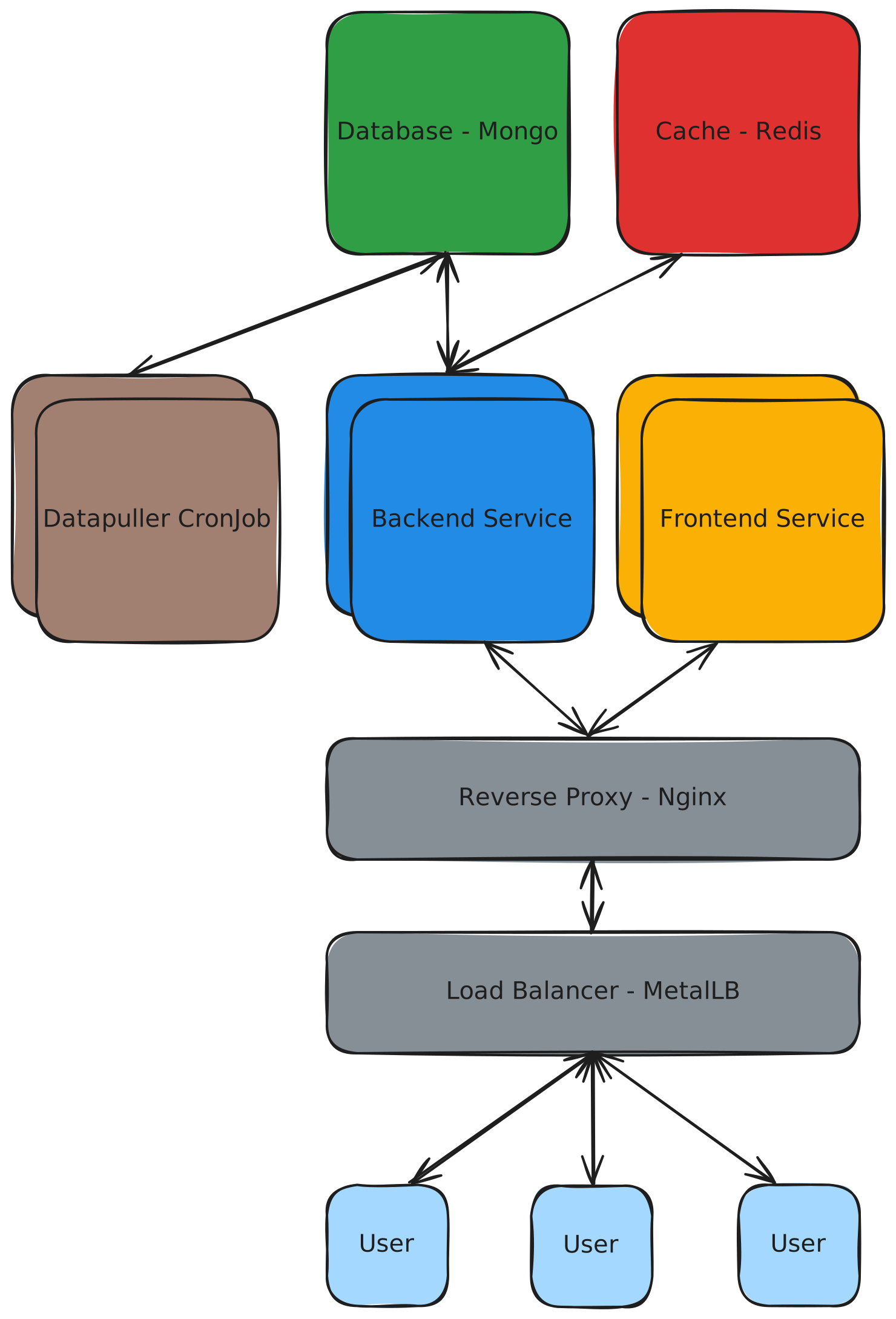
Note that, other than the application services developed by us, all other services are well-known and have large communities. These services have many tutorials, guides, and issues already created online, streamlining the setup and debugging processes.
An HTTP Request's Life
To better understand the roles of each component in the Berkeleytime architecture, we describe the lifecycle of an HTTP request from a user's action.
-
An HTTP request starts from a user's browser. For example, when a user visits
https://berkeleytime.com, aGETrequest is sent tohozer-51.1 -
Once the request reaches
hozer-51, it is first encountered byhozer-51's Kubernetes cluster load balancer, a MetalLB instance, which balances external traffic into the cluster across nodes.2 -
Next, the request reaches the reverse proxy, an nginx instance, which forwards HTTP requests to either a backend or frontend service based on the URL of the request
- Requests with URLs matching
https://berkeleytime.com/api/*are forwarded to the backend service. - All other requests are forwarded to the frontend service.
The nginx instance is also responsible for load balancing between the backend/frontend replicas. Currently, there are two of each in all deployment environments.
- Requests with URLs matching
-
The request is processed by one of the services.
- The backend service may interact with the MongoDB database or the Redis cache while processing the request.3
-
Finally, an HTTP response is sent back through the system to the user's machine.
More specifically, the user's machine first requests a DNS record of berkeleytime.com from a DNS server, which should return hozer-51's IP address. After the user's machine knows the hozer-51 IP address, the GET request is sent.
Currently, we only have one node: hozer-51.
Requests sent from the backend to the database or cache are not necessarily HTTP requests.
SSH Setup
warning
This onboarding step is not necessary for local development. As running commands in hozer-51 can break production, please continue with caution.
The Berkeleytime website is hosted on a machine supplied by the OCF. This machine will be referenced as hozer-51 in these docs. SSH allows us to connect to hozer-51 with a shell terminal, allowing us to infra-related tasks.
This guide assumes basic experience with SSH.
-
Please ensure your public SSH key has an identifying comment attached, such as your Berkeley email:
ssh-ed25519 AAAAC3NzaC1lZDI1NTE5AAq8Lwls394thisIsNotARealKey [email protected]You can directly modify your public key file at
~/.ssh/id_*.pub, or you can use the following command:ssh-keygen -c -C "[email protected]" -f ~/.ssh/id_*Note that
-ftakes in the path to your private key file, but only modifies the public key file. -
Copy your SSH key to the
hozermachine'sauthorized_keysfile:ssh-copy-id [email protected]The SSH password can be found in the pinned messages of the #backend staff channel in discord.
-
(Optional) Add
hozer-51to your~/.ssh/configfile:# Begin Berkeleytime hozer config Host hozer-?? HostName %h.ocf.berkeley.edu User root # End Berkeleytime hozer configNow, you can quickly SSH into the remote machine from your terminal:
ssh hozer-51
# as opposed to [email protected]
Kubernetes & Helm
Kubernetes is a container orchestrator that serves as the foundation of our infrastructure. It provides a simple deployment interface. To get started with Kubernetes, here are a few resources:
- The concepts page is a good place to start.
- The glossary is also a good place to glance over common jargon.
Helm is a package manager for Kubernetes that provides an abstraction over the Kubernetes interface for deploying groups of components called "charts". In addition, it allows us to install pre-made charts, useful for deploying services that we don't develop.
Here is a diagram outlining (in some detail) the structure of the Kubernetes cluster:
Useful Commands
This is an uncomprehensive list of commands that can be executed in hozer-51, useful for debugging.
tip
On hozer-51, k is an alias for kubectl and h is an alias for helm.
important
The default namespace has been set as bt.
Pods
-
k get podsView all running pods.
-
k get pods -l env=[dev|stage|prod]View all running pods in a specified environment.
-
k logs [pod name]View logs of a pod. You can get a pod's name with
k get pods. Include a-fflag to follow logs, which will stream logs into your terminal. -
k describe pod [pod name]View a description of a pod. Useful for when pod is failing to startup, thus not showing any logs.
-
k exec -it [pod name] -- [command]Execute a command inside a pod. The command can be
bash, which will start a shell inside the pod and allow for more commands.
Deployments
-
k get deployView all running deployments.
-
k get deploy -l env=[dev|stage|prod]View all running deployments in a specified environment.
-
k describe deploy [deploy name]View a description of a deploy. Useful for when the deploy's pods are failing to startup, thus not showing any logs.
-
k rollout restart deploy/[deploy name]Manually restart a deployment.
Helm Charts
-
h listList helm chart releases. A release is an installed instance of a chart.